
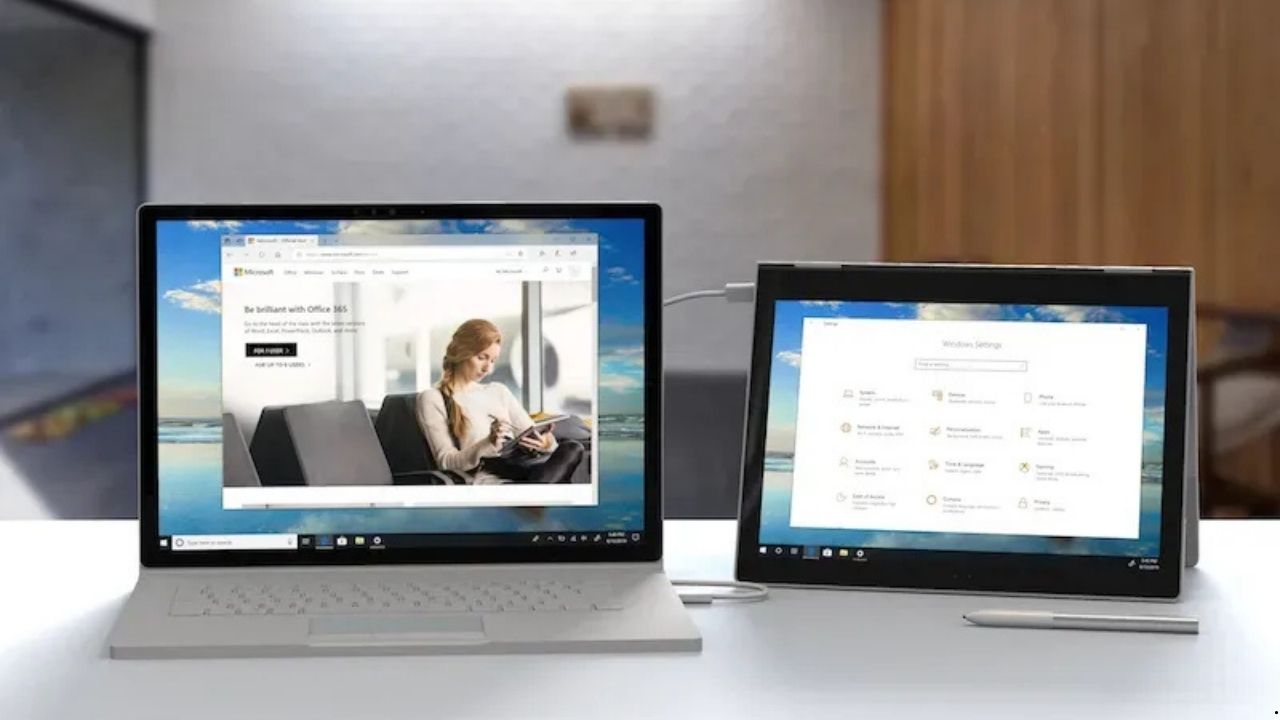
Working from home has become the new normal for millions of people worldwide. However, one common challenge many remote workers face is limited screen space. If you’ve ever found yourself switching between multiple windows constantly, you know how frustrating it can be. The good solution is that you don’t need to buy an expensive monitor. Instead, you can transform your existing tablet into a fully functional second display. In this guide, we’ll show you exactly how to do this using Duet Display, a powerful tool that works seamlessly across different devices.
Why You Need a Second Screen
Before we dive into the setup process, let’s talk about why having a second screen matters. Research shows that dual monitors can boost productivity by up to 42%. Moreover, having extra screen space reduces eye strain because you’re not constantly squinting at tiny windows. For remote workers, designers, programmers, and content creators, this extra real estate makes a huge difference in daily workflow.
Think about your typical workday. You might have your email open in one window, a video call in another, and several documents scattered across your desktop. Furthermore, you’re probably toggling between your web browser and various applications. This constant switching wastes time and breaks your focus. A second monitor solves this problem instantly.
Understanding the Solution
Duet Display offers an elegant solution to the screen space problem. This software allows you to connect your iPad, Mac, PC, or Android device as an additional monitor. Additionally, it works across different operating systems, which means you can connect your iPad to a Windows PC or use your Android tablet with a Mac. The flexibility is remarkable.
What sets this tool apart is its performance. Unlike other solutions that lag or stutter, the connection provides zero lag. Therefore, professionals who need precision in their work can rely on it completely. Video editors, graphic designers, and stock traders particularly benefit from this smooth performance.
Getting Started with the Setup
The first step is straightforward. You need to download the desktop host software on your main computer. This is crucial because the desktop client acts as the bridge between your devices. Without it, the connection won’t work. Head to the official website and grab the appropriate version for your operating system.
Once you’ve installed the desktop application, the next step is installing the companion app on your tablet or secondary device. The process takes just a few minutes. After that, make sure both devices are on the same network if you’re using a wireless connection. Alternatively, you can use a USB cable for a wired setup.
Choosing Between Wired and Wireless
You have two connection options: wired or wireless. Each has its advantages. A wired connection using a USB cable typically offers more stability and slightly better performance. On the other hand, wireless gives you more freedom to position your second screen wherever you want.
For most office tasks like writing, browsing, or spreadsheet work, wireless works perfectly fine. However, if you’re doing graphics-intensive work or gaming, a wired connection might serve you better. The good news is that both methods deliver zero lag performance, so you can switch between them based on your needs.
Setting Up Your Workspace
Physical placement of your second screen matters more than you might think. Ideally, position your tablet at eye level or slightly below. This reduces neck strain during long work sessions. Many people place their second monitor to the side of their primary display. Nevertheless, some prefer placing it directly above their laptop screen.
Experiment with different arrangements to find what works best for you. Some users prefer having their communication apps like Slack, email, or apps they use on iPad on the second screen. Meanwhile, others keep their main work on the primary display and use the tablet for reference materials or documentation.
Maximizing Productivity with Dual Screens
Now that you have your setup running, let’s talk about boosting efficiency with your dual screens. First, establish clear purposes for each screen. For instance, keep your active work on your main monitor and monitoring tools on the second one. This creates a natural workflow that your brain will quickly adapt to.
Additionally, take advantage of keyboard shortcuts to move windows between screens quickly. Most operating systems have built-in shortcuts for this. Learning these saves precious seconds throughout your day. Those seconds add up to hours over weeks and months.
Common Use Cases
Different professionals benefit from dual monitors in unique ways. Writers often keep research materials on one screen while writing on the other. Similarly, programmers display their code on one monitor and documentation or testing results on the second. Social media managers monitor multiple platforms simultaneously without constant tab switching.
Video editors particularly love the extended workspace. They can have their timeline on one screen and preview window on another. Financial professionals track multiple stocks or charts across both displays. The possibilities are endless.
Troubleshooting Tips
Sometimes you might encounter connection issues. First, ensure both devices are updated to the latest software versions. Second, check your firewall settings aren’t blocking the connection. Furthermore, restarting both devices often solves mysterious connection problems.
If you experience performance issues, close unnecessary applications running in the background. They consume resources that could affect your second display’s smoothness. Additionally, make sure your network connection is stable if you’re using wireless mode.
Taking Action
Ready to transform your workspace? Visit Duet Display today and download the software for your workstation. The installation process is simple and the benefits are immediate. Thousands of professionals worldwide already use this solution to enhance their productivity.
Setting up a second monitor doesn’t require expensive hardware purchases. Your existing tablet can serve this purpose perfectly. Therefore, you’re making the most of devices you already own. This smart approach saves money while boosting your efficiency.
The shift to remote work isn’t temporary. Consequently, investing in proper tools and setups makes sense for your long-term success. A second screen is one of the most impactful upgrades you can make to your home office. Start today and experience the difference yourself.