

Okay, so if you’ve ever managed social media for a small business (or even just your own side hustle), you know how messy it can get. One post looks fine, the next is all over the place, and suddenly your feed has no “feel” at all. I’ve definitely been there — trust me, it’s frustrating.
What helped me was realizing that mixing content formats on purpose is way better than just throwing stuff together. I’m talking templates, free videos, and little PNG overlays like icons or logos. It doesn’t take a design degree, but it does take a bit of planning.
Templates Are a Life Saver
I can’t tell you how many times I stared at a blank canvas and did nothing. Templates solve that — and understanding when to use template contracts can be just as important when you’re running a SaaS or digital business.
- Grab a few that match your brand vibe and keep them handy.
- You don’t need to use them exactly as they are — you can even quickly remove objects from photos to make visuals cleaner before applying templates.
- . Even small tweaks make them feel “yours.”
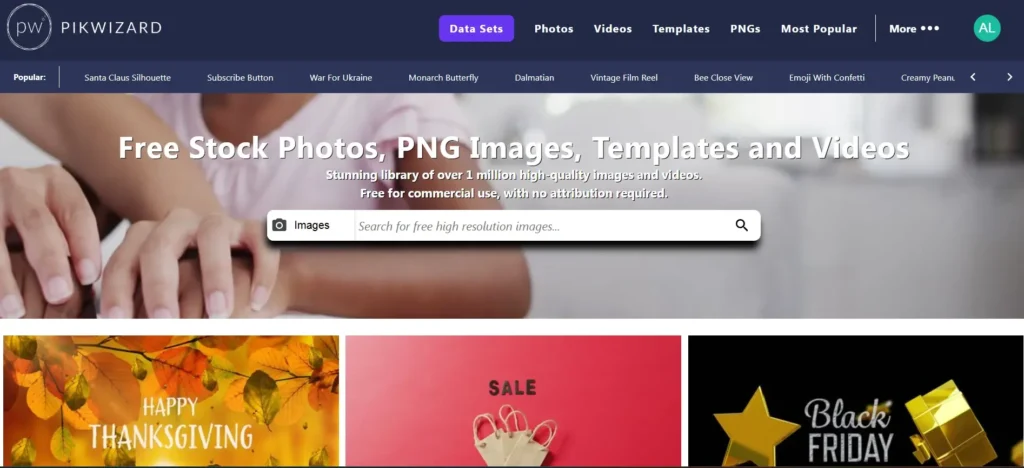
- I usually pull mine from Pikwizard templates collection. They’re free and already look decent, so you’re not starting from zero.
Videos Grab Attention
Even tiny video clips get more engagement than static posts, and you don’t need a studio to make them work.
- Keep it short — 10–20 seconds is plenty.
- Add captions because most people scroll on mute.
- I sometimes grab stock videos from Pikwizard for backgrounds or quick product clips. Works surprisingly well.
PNGs On Transparent Background: The Little Things Matter
Transparent PNGs might seem minor, but understanding web design basics helps you see why small visual details make a feed feel polished.
- Put your logo somewhere subtle.
- Use icons or shapes to highlight info or guide the eye.
- A few well-placed PNGs go a long way in making everything look intentional.
How I Usually Put It Together
Here’s what I do for one post or a carousel:
- Start with a video clip to grab attention.
- Follow with a few images using a template.
- Drop in PNG overlays or icons to tie it together.
It doesn’t need to be fancy, just consistent. People notice when a feed “feels” cohesive.
You don’t need a design team to make your social media look good. Templates give you a starting point, videos get eyes on your posts, and PNG overlays make things look polished. Free resources like Pikwizard.com make it easy, and once you get into the habit of organizing and reusing assets, it gets way less stressful.
It’s kind of like cooking — a few simple ingredients combined thoughtfully can taste way better than some complicated recipe you forget halfway through.
FAQ
1) How do I keep my feed consistent without making every post look identical?
Use a small “content kit” instead of one rigid template. Pick 3–5 templates that share the same fonts and colors, then rotate formats (quote, tip, product, behind-the-scenes). Keep the layout patterns familiar, but switch the photos, headlines, and spacing so it stays fresh.
2) What’s the easiest way to choose templates that match my brand?
Start with your brand basics: 1–2 fonts, 2–4 core colors, and a general vibe (clean/minimal, bold/playful, earthy, luxe). When you browse templates, ignore the placeholder images and focus on structure: headline style, spacing, and how the template guides the eye.
3) I’m not a designer—what’s the minimum I should change in a template?
Three quick tweaks are usually enough:
- Swap in your brand colors
- Change the fonts to your go-to fonts
- Adjust the headline size/placement so it fits your voice
Even small changes make a template feel custom.
4) What kind of videos work best for a small business?
Simple wins. Try:
- A quick product close-up or “in use” clip
- A short before/after
- A 10–20 second behind-the-scenes moment
If it communicates value fast, it works.
5) Do I really need captions on videos?
Yes—most people scroll with sound off. Captions also make your content more accessible and help viewers “get it” in the first couple seconds.
6) How do PNG overlays improve a post without making it look cluttered?
Use them like seasoning. Stick to 1–3 overlays per post (logo, icon, shape highlight). Keep them consistent in style (same line thickness, same color family), and leave breathing room around text.
7) Where should I place my logo so it looks professional (not like a watermark)?
Keep it small and predictable: bottom corner or near the final frame of a carousel. Use a version that fits the background (full-color on light, white on dark), and don’t let it compete with the headline.
8) How do I organize assets so creating posts stops being stressful?
Make a simple folder system:
- Templates (your 3–5 favorites)
- Brand kit (fonts, colors, logo versions)
- Video clips (backgrounds, products, BTS)
- PNGs/Icons (overlays, shapes, stickers)
Once everything’s in one place, posting feels less like “starting over.”
9) What’s a good weekly posting mix using templates, videos, and PNGs?
Here’s an easy starter rhythm:
- 2 template-based image posts
- 1 short video
- 1 carousel (template + PNG overlays)
That’s enough variety to look intentional without burning you out.
10) If I only have 30 minutes, what should I create first?
Make one carousel:
- Strong first slide (hook headline)
- 2–3 slides of helpful tips or product info
- Final slide with a clear call-to-action
Use one template set and repeat the same PNG/icon style across all slides for instant cohesion