
A surprising number of website owners and app developers are paying for the wrong things. When a site starts to get slow, people often upgrade their VPS to get more CPU cores or RAM. Sometimes that helps, but for many real projects, the problem is storage.
More backups, more media, more logs, more code, it all adds up. And suddenly, your VPS does not have a speed problem; it has a space problem.
That is where a Storage VPS comes in as a VPS plan designed for capacity. Instead of paying for CPU or RAM, you can spend your budget on disk space, reliable speed, and a setup that is perfect for backups and keeping data for a long time.
In this guide, we want to explore what a storage VPS is, who actually needs it, what to look for before you buy, and quick setup tips.
What is a storage VPS?
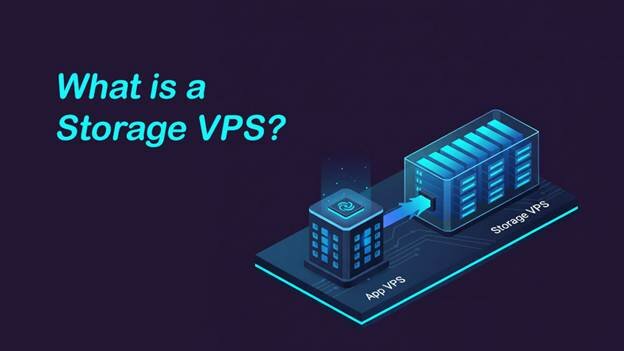
A storage VPS is a virtual server that is optimized for disk space and storage tasks. In simple words, it means:
- More disk space per dollar compared to normal VPS plans.
- Enough CPU and RAM to move files and run storage tasks, but you don’t pay extra for heavy processing power.
- Storage-focused features like steady read/write speeds, backups, snapshots, and clear rules for data transfer.
A storage VPS is perfect for handling data, but if your project needs maximum performance and full hardware control, you may want to explore dedicated server hosting as well. You would not use a storage VPS to run a heavy application that needs a lot of CPUs. You can choose it when your main need is a reliable place to put data.
- Your App VPS runs your code and handles visitors.
- Your Storage VPS holds the data your app needs, like backups, files, logs, and archives.
Separating these makes it easier to grow because you can add more disk space without changing how your main application works.
Who Needs a Storage VPS?
If you are dealing with any of the situations below, getting a storage VPS is usually one of the easiest upgrades you can make.
Backups
If your backups are on the same server as your website, they aren’t really backups. A storage VPS can act as an offsite backup server:
- Daily database copies
- Weekly full site backups
- Virtual machine images
- Archives of your settings
Even small teams can benefit from a dedicated backup, because it keeps your recovery files safe and separate from your main site.
Media Libraries and User Uploads
As you must know, content grows quietly. Product photos, audio files, videos, PDFs, and files uploaded by users can quickly become your biggest resource user.
A media storage server works well for:
- Hosting a media library used by different services
- Keeping an organized archive of files
- Moving older files off your main app server to save space
Log Retention and Audit Trails
Logs are useful until they get too big to manage. If you keep application logs, security logs, or history records, you may need:
- To keep them longer for troubleshooting.
- A separate place to store compressed logs.
- Predictable disk usage so you don’t fill up your app server.
Archives and Long-term Storage
Some businesses need to keep data for months or years. An archive storage VPS can store:
- Old customer records
- Invoices and documents
- Periodic snapshots of important data
Repositories and Build Artifacts
Teams that store large code repositories or software builds often run out of space. A Git repository storage solution can support:
- Git mirrors and backups
- Archives of old software builds
- Packages for download
What to Check Before Buying a VPS for Storage?
Storage VPS plans can look similar at first. But, after you use them for a few weeks, the differences that matter the most will show up.
Here are the most important things you must check before buying a storage VPS:
Disk type and Layout
One of the most essential factors for your storage VPS is the type of the disk. You must ask for what kind of storage is it?
- NVMe: Great for high speed and fast transfers. It is useful if you have many small files or sync data.
- SSD: Usually a best choice for general storage.
- HDD: Often cheaper and holds a lot of data, but it is slower for random tasks.
You do not need NVMe for everything, but you should match the disk type to your work. Backups of large files can work fine on slower disks, repositories and lots of small files usually work better with faster disks.
IOPS and Real-world Performance
Many buyers ignore IOPS (speed of operations) until their backup jobs slow down or restoring a file takes too long.
You must consider that:
- Lots of small files and frequent updates need better random speed (IOPS).
- Huge archives and old storage care more about steady transfer speed (throughput).
If a provider does not show these numbers, you can test the performance after you set it up and decide if you want to keep it.
Bandwidth and Traffic Rules
Backups are not just about disk space; they are about transferring data. You must check:
Monthly data transfer limits.
- If you are allowed burst speed for short times.
- If there are rules that slow you down after heavy usage.
- If your time window for backups is short, you want enough network speed to finish the job quickly.
Backup Options and Snapshots
A backup server still needs its own safety backup. You must look for:
- Provider snapshots or backup add-ons.
- Clear instructions on how to restore data.
- The ability to schedule snapshots if possible.
Even if you keep your own copies, snapshots can save you if you accidentally delete something important.
Upgrade Path
As you must know, data grows and you should check:
- Whether you can increase disk space later without moving everything.
- Whether you can add extra disk volumes.
- How upgrades happen, do they need to rebuild the server?
If you need a real example and reliable option for a storage-focused VPS, you can review PerLod Storage VPS.
Quick Setup Tips for Storage VPS Hosting
Setting up a storage VPS is easier than you think. Here are some quick tips that works for most teams:
1: Mounting and Organizing Storage: Keep your data in a specific folder and avoid mixing it with system files.
A common method include:
- Create a folder like /data or /storage.
- Create subfolders for backups, media, logs, and archives.
- Write down your structure so you remember it later.
If you are adding extra disks, make sure they stay connected even after you restart the server.
2: Using Rsync for Backups: Rsync is still one of the most reliable tools for copying backups.
Here are the best practices for using rsync:
- Run rsync to push data to your storage VPS or pull data from it, depending on your security needs.
- Compress files when it helps, but do not compress files that are already zipped.
- Keep logs of your rsync jobs so you can see what changed.
Note: For databases, do not use rsync on live database folders. Export a dump file first, and then transfer that file.
3: Snapshots and Retention: Retention is where backup plans often fail. A simple rule you consider include:
- Keep daily backups for a short time, for example, 7 to 14 days.
- Keep weekly backups for a longer time.
- Keep monthly snapshots if you need long-term archives.
This prevents infinite backup growth, which will eventually fill up any disk.
4: Access Control: Storage servers attract attention because they hold valuable data. Minimum controls include:
- Disable password logins and use SSH keys.
- Restrict access to your IP address if possible.
- Consider using separate users for backup jobs.
- Use SFTP for teams who only need to upload or download files.
If anything on your server is public, make sure to have strong firewall rules.
Final Words
A storage VPS is one of the cleanest upgrades you can make when your project is limited by disk space, not computer power.
If backups are growing, media is expanding, logs are piling up, or you need a safer place for archives, moving storage into a dedicated space reduces risk and keeps your main app server clean.
Always remember to:
- Match the disk type to your workflow.
- Confirm the bandwidth and transfer rules.
- Make sure snapshots and upgrade paths exist.
- Set up access control early.