
Forgetting the password, PIN, or pattern on an Android phone can leave you stuck at the lock screen with no obvious way forward. Whether you recently changed your screen lock or simply haven’t used the device for a while, knowing how to unlock an Android phone without a password can be useful when you’re the legitimate owner and need to regain access.
The right solution depends on your device, Android version, and whether you need to preserve the data stored on it. Some official methods can help recover access, while other approaches may require a factory reset.
Can You Unlock an Android Phone Without a Password?
In some situations, yes, but there is no universal method that works on every Android phone. Modern Android devices are designed to protect personal data, so bypassing a forgotten screen lock isn’t as simple as removing a file or changing a setting.
Before trying an unlocking method, consider whether you can recover the original credentials or use an official recovery option. If those options aren’t available, a dedicated Android unlocking tool may be worth considering, which can unlock an Android phone screen, and bypass FRP.
Method 1: Try Official Recovery Options First
The safest approach is to use the recovery options provided by your device manufacturer or Google. Depending on the phone, you may be able to recover your Google account, use a previously configured security option, or access manufacturer-specific recovery features.
If you ultimately perform a factory reset, keep in mind that it normally erases the data stored on the device. After the reset, Factory Reset Protection (FRP) may also require verification with a Google account that was previously associated with the phone. For this reason, make sure you know the relevant Google account credentials before resetting a device whenever possible.
Method 2: Use an Android Unlocking Tool
If you own the phone but cannot remember the screen password and the available recovery options don’t work, dedicated Android phone unlocker can provide another approach.
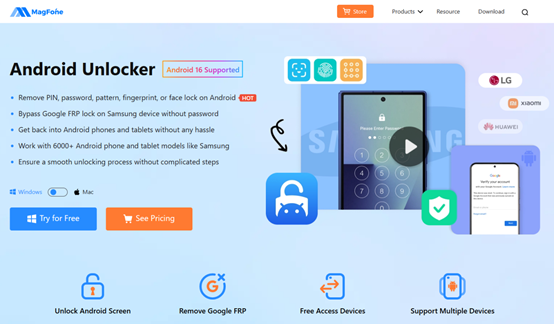
MagFone Android Unlocker is designed to help users remove different types of Android screen locks, including forgotten PINs, passwords, and patterns on compatible devices. Instead of requiring users to work through complicated commands, the software provides a guided workflow.
Why Consider MagFone Android Unlocker?
One of the main advantages is its straightforward operation. The software is designed for users who may not have advanced technical knowledge and provides on-screen instructions throughout the process. Depending on the supported device and unlocking mode, it can help with:
- Forgotten Android passwords
- PIN and pattern locks
- Screen lock issues
- FRP and Google Account Verification on supported devices
- Various Android brands and models
However, compatibility can vary by manufacturer, model, Android version, and security patch. It’s a good idea to check the supported-device information before starting.
How to Unlock an Android Phone Without a Password Using MagFone
If you’ve decided to use an Android unlocking tool, the process generally involves the following steps.
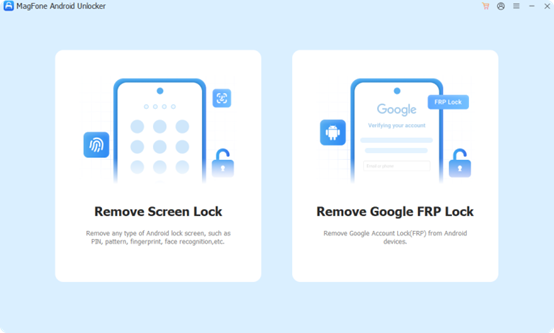
Step 1: Install and open MagFone Android Unlocker on your computer. From the main interface, choose the feature related to removing the Android screen lock. Connect the locked Android device to the computer with a USB cable.
Step 2: Depending on the phone model, you may need to enter Recovery Mode or Download Mode. MagFone provides instructions for completing the required steps. Once the device has been prepared, start the unlocking process. The software will perform the required operations automatically.
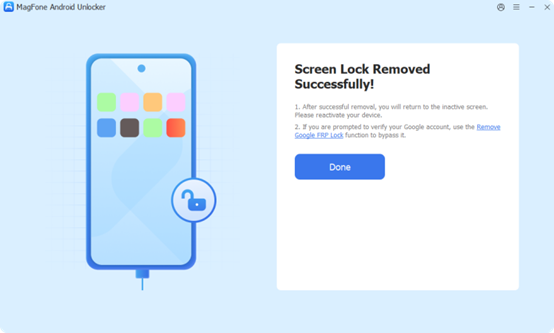
When the process finishes, restart the phone and check whether the screen lock has been removed. You may then be able to access the device and complete the setup process again.
Will Unlocking an Android Phone Erase Data?
This is one of the most important questions to consider before attempting to remove a forgotten screen lock. Some Android unlocking methods require a factory reset, which means existing photos, messages, apps, and other locally stored data may be erased. Therefore, if your phone still allows you to back up its contents, create a backup before attempting any unlocking procedure.
Data preservation also depends on the specific device and unlocking method. Users should check the software’s supported models and instructions before proceeding rather than assuming that every unlocking method is data-safe.
What About Google FRP After Unlocking?
Screen lock removal and Factory Reset Protection (FRP) are two different issues. If an Android phone has been reset and displays Google Account Verification, you may be dealing with FRP rather than a simple screen lock. FRP is a security feature designed to prevent unauthorized use of a reset device.
If you encounter FRP after resetting your own phone, the best option is to sign in with the previously associated Google account or use Google’s account-recovery options. Some professional Android tools, including MagFone Android Unlocker, also provide an FRP-related feature for supported devices.
Important Things to Know Before Unlocking
Before using any Android unlocking software, keep these points in mind:
- Only unlock devices you own or are authorized to access.
- Check compatibility with your exact phone model and Android version.
- Back up your data whenever possible.
- Understand whether the selected method requires a factory reset.
- Keep your Google account credentials available in case FRP is triggered.
- Avoid downloading unknown unlocking programs from untrusted sources.
FAQs
Can I unlock my Android phone without losing data?
It depends on the phone and unlocking method. Some methods may require a factory reset and erase local data, while certain professional tools offer data-preserving options for supported devices. Always check the specific requirements before starting.
What is the easiest way to unlock an Android phone without a password?
If you can recover your account or use an official recovery method, that should be your first choice. When those options aren’t available, a dedicated Android unlocking tool with a guided workflow can be easier than manually working through technical procedures. For compatible devices, MagFone Android Unlocker is one option to consider.
Final Thoughts
A forgotten Android password doesn’t necessarily mean the phone is permanently unusable. Start with official recovery options whenever possible, especially if preserving your data is important. If those options aren’t available, an Android unlocking tool can provide a more guided way to deal with a forgotten PIN, password, or pattern.
For users who need a straightforward solution, MagFone Android Unlocker offers screen-lock removal and FRP-related features for supported Android devices. Just remember to verify compatibility and understand the potential impact on your data before proceeding.