
You sit down after a long day, boot up your gaming rig, click the bright green “Play” button on Steam, and wait for your favorite digital world to load. But instead of an epic intro cinematic, nothing happens. The button briefly changes to “Launching,” flashes “Running” for a split second, and then stubbornly reverts to “Play.”
While a failure to boot is annoying enough on its own, the underlying causes of this issue can often trigger a far more severe problem: the silent corruption or complete disappearance of your local game saves and configuration files. This guide provides practical, step-by-step troubleshooting solutions to fix the booting process and details how to utilize advanced file rescue tools to ensure your precious progress remains completely intact.
Why a Sudden Launch Failure Can Endanger Your Local Game Saves
To fix a stubborn game library, you must first understand why the execution loop breaks. The Steam client relies on a delicate web of local application data, registry entries, graphics runtimes, and storage permissions.
When a steam game won’t launch, the root cause usually falls into one of three categories:
- Corrupted Game Cache: During a large update or a sudden internet disconnect, critical game assets or .dll binaries can download incorrectly, leaving the game engine unable to execute.
- Storage Drive Failures or Bad Sectors: If your solid-state drive (SSD) or secondary hard drive develops bad sectors precisely where the game’s executable file or local save directory is mapped, Windows will fail to read the data, and the application will instantly crash to the desktop.
- Aggressive Antivirus Interference: Modern security software frequently flags custom game modifications (mods), cheat-protection engines, or new game patches as false positives, abruptly terminating the launching sequence.
The real danger arises when players try to resolve a launch failure by blindly clicking options, forcing hard resets, or cleanly reinstalling the game. If the launch failure stems from an underlying hard drive error or an ungraceful system shutdown, forcing repeated reboots can corrupt the local AppData folders, permanently erasing your offline campaign saves, custom keybindings, and mod layouts.
Native Troubleshooting to Fix a Launching Glitch
Before you jump into deep file restoration, you should attempt to resolve the issue using Steam’s built-in diagnostic infrastructure and standard Windows administrative paths.
Method 1: Verify the Integrity of the Local Game Files
Steam features an excellent built-in verification matrix that scans your local installation directory against the official developer manifest on Valve’s servers, automatically replacing any broken or missing binaries.
- Launch your Steam client and navigate directly to your personal Library tab.
- Right-click on the specific title where the steam game won’t launch error occurs, and select Properties from the context menu.
- In the properties navigation panel, click on the Installed Files tab on the left-hand sidebar.
- Click the Verify integrity of game files option located on the right side of the window.
Allow Steam several minutes to compute the file hashes. If the client discovers any mismatched or broken elements, it will automatically download clean replacements.
Method 2: Manually Clean Out the Local Shader and AppData Cache
Sometimes, residual graphic shader caches or corrupted user configuration files block the startup sequence. Clearing these manually forces the game engine to build a fresh, stable profile on its next boot.
- Press the Windows Key + R hotkey combination to initialize the run dialog box.
- Type %appdata% into the text box and press Enter to open the hidden roaming data directory.
- Navigate back one folder level to the main AppData folder, then open the Local directory.
- Look for the folder named after your game or its publisher (e.g., AppData\Local\GameName) and inspect the configuration files.
Additionally, if you use an NVIDIA graphics card, navigate to the path %localappdata%\NVIDIA\DXCache and delete the temporary files inside. This safely purges stale DirectX shader data that often prevents modern graphics engines from rendering properly at startup.
Rescuing Disappeared Game Saves with PandaOffice Drecov
If you verify your game files, clear your shader caches, and find that your steam game won’t launch because a drive partition has turned unreadable or a directory has completely vanished, it is time to shift your strategy. Reinstalling Steam or formatting your drive at this stage will overwrite your local data sectors, destroying your irreplaceable campaign progress forever. To extract your data safely without relying on a broken Windows directory system, you need a specialized file rescue solution.
PandaOffice Drecov serves as your ultimate digital safety net. Specifically built to handle data emergencies caused by software crashes and drive errors, PandaOffice Drecov uses advanced sector-scanning algorithms to bypass operating system limitations. It reads the raw storage sectors of your SSD or hard drive, identifies orphaned game databases, and reconstructs deleted .sav, .dat, and configuration files with ease.
Best of all, PandaOffice Drecov features a highly intuitive user interface. You do not need a computer science degree or complex command-line experience to salvage your hard work; the application handles the complex lifting behind the scenes.
The Ultimate Rule of Save File Retention
Before running any advanced recovery scan, you must follow the most important rule of data rescue: Stop writing any new data to your gaming drive immediately.
Critical Warning: Downloading new games, streaming videos, or running background disk defragmentation tools can overwrite the invisible sectors where your deleted save files still live. Always download and install PandaOffice Drecov onto an external USB flash drive or a separate storage drive to ensure a completely safe, isolated recovery process.
Step-by-Step Blueprint to Recover Your Lost Game Progress
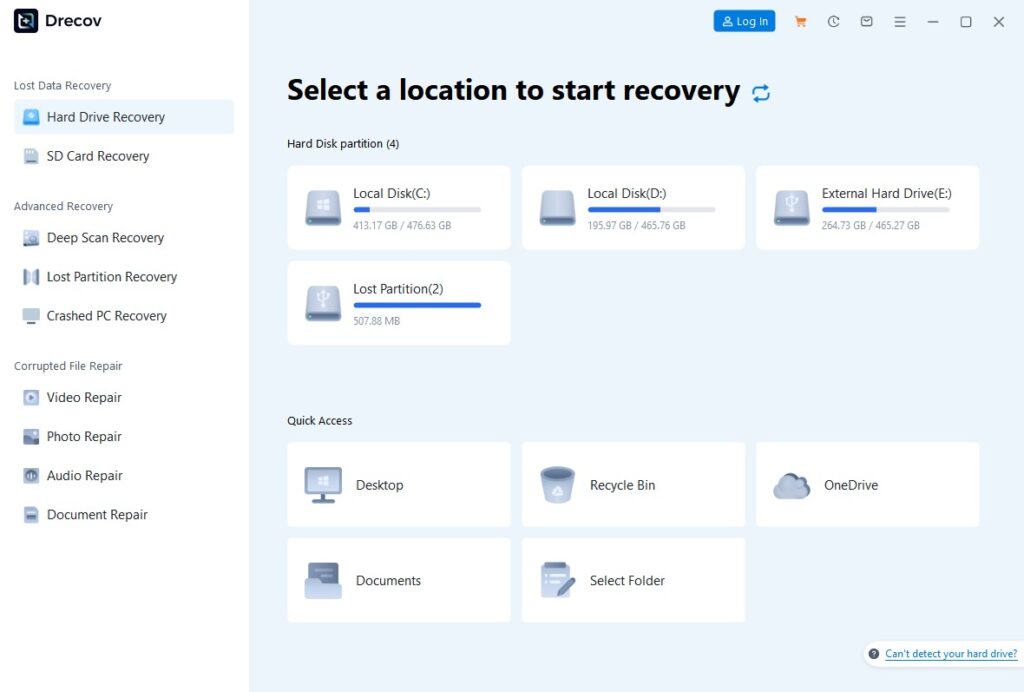
Step 1: Map the Scanning Destination
Launch PandaOffice Drecov from your safe storage location. Identify the drive where your Steam library or local user profile is located and click the Scan button to begin raw sector analysis.
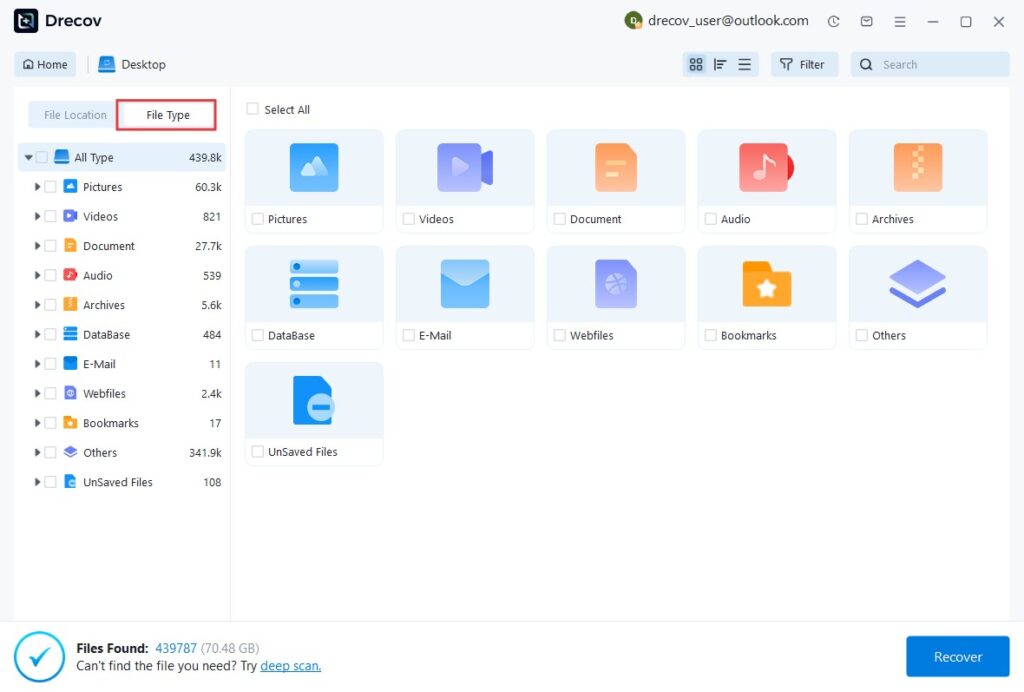
Step 2: Track, Filter, and Target Specific Save Formats
PandaOffice Drecov will run a rapid initial check, immediately followed by an intensive deep sector scan. Use the File Type tree menu on the left sidebar to filter down your scan results. If you want to locate your save files instantly, type the specific file extension used by your game engine.
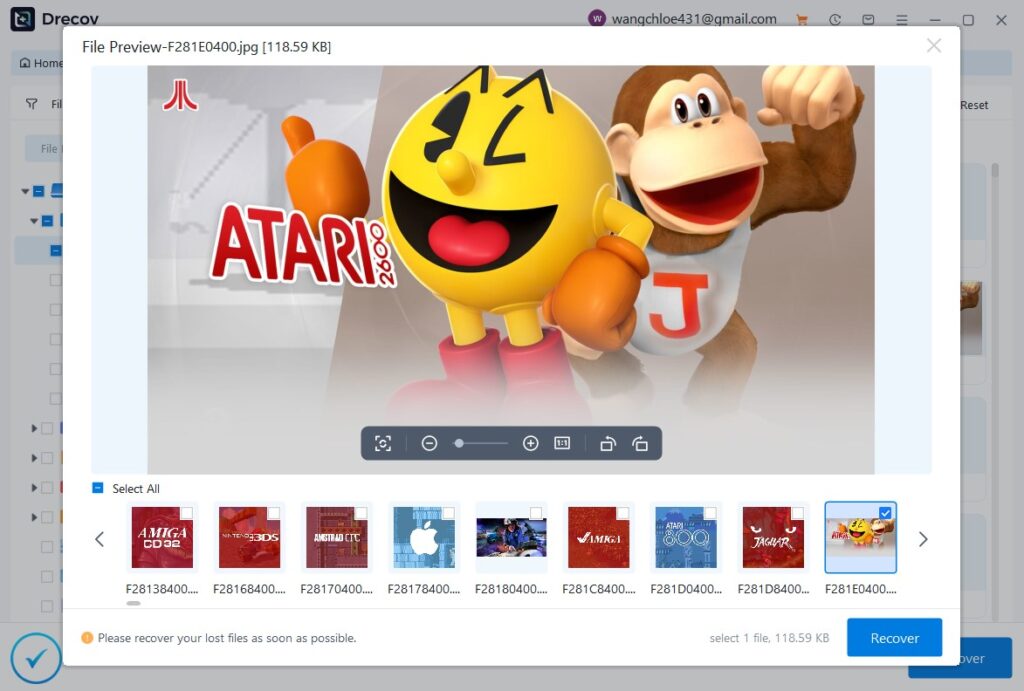
Step 3: Preview File Integrity and Restore Safely
Double-clicking a recovered configuration file or save state opens an instant preview, allowing you to check the file’s structure and make sure it isn’t corrupted. Check the boxes next to the game folders and click the Recover action button.
Pro-Tip Warning: When saving your recovered files, always choose a completely different drive, such as an external hard drive, an SD card, or a cloud folder. Never save your rescued data back onto the same drive partition you just scanned, as this will trigger severe sector overwriting and cause permanent data loss.
Once your files are safely recovered, simply place the .sav files back into your game’s default local save path, launch Steam, and get back to your game right where you left off.
Proactive Settings to Bulletproof Your Steam Library
After you fix your launch issues and salvage your files with PandaOffice Drecov, take a few minutes to configure your PC to prevent future launch failures and protect your data.
- Fix Storage Mount Protocols via the Registry: Make sure Windows mounts your secondary gaming drives reliably during startup. Open the Windows Registry Editor by typing regedit in the Start menu search bar. Navigate to the path HKLM\SYSTEM\CurrentControlSet\Services\Disk. Look for the value entry named Start on the right side. Ensure this DWORD value data is set to 0, which tells the operating system to initialize core storage controllers immediately during the early boot phase.
- Force Local Cloud Cache Synchronizations: Do not rely entirely on automatic background syncing. Regularly check your game’s status by opening the game properties menu in Steam, navigating to the General tab, and toggling Keep game saves in the Steam Cloud off and on again to clear out stuck synchronization queues.
- Isolate Your Gaming Directory from Antivirus Scans: Open your Windows Security control center, navigate to Virus & threat protection settings > Exclusions, and add your entire Steam\steamapps\common folder to the exclusion list. This stops background security scans from causing false positives and causing sudden launch failures.
Conclusion
Dealing with an issue where a steam game won’t launch can easily ruin your weekend plans. However, by using built-in Steam tools to check file integrity and clearing out temporary AppData caches, you can easily resolve most minor software glitches.
When deep file errors or system crashes wipe out your local progress, a specialized recovery tool like PandaOffice Drecov helps you bypass Windows limitations to safely rescue your save files. By practicing smart backup habits and keeping a reliable data recovery tool ready, you can protect your gaming achievements and ensure that a technical glitch never means “Game Over” for your hard work.