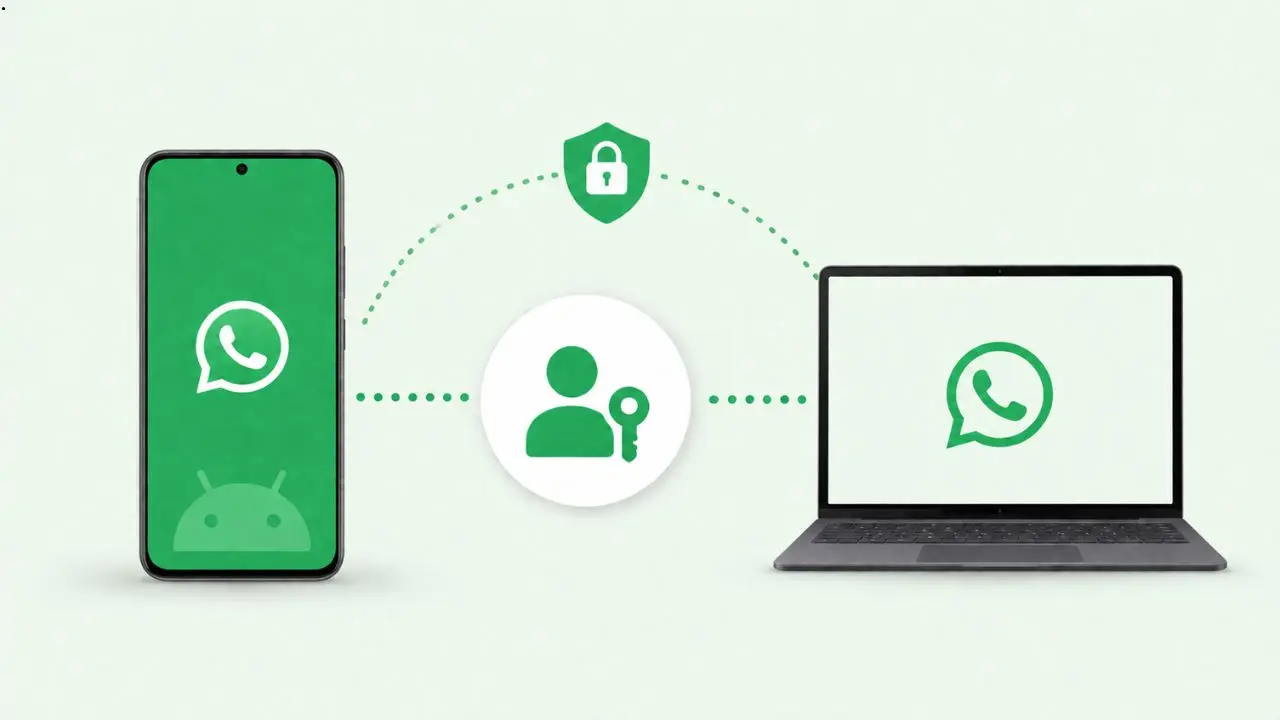
WhatsApp is building a new way to link your phone with other devices. Instead of scanning a QR code every time, you may soon be able to use a passkey to do this faster. This update is still in development, but it shows where WhatsApp is heading with account security.
This change won’t replace the QR code system. It will simply give users another option. So if you still like scanning codes, you can keep doing that. But if you want something quicker, a passkey could soon do the job.
Table of Contents
What a passkey actually does for your WhatsApp account
Before we get into the new feature, it helps to understand what a passkey is. A passkey is a modern login method that uses your device’s built-in security tools. This includes things like your fingerprint, face scan, or screen lock pattern.
Right now, WhatsApp mainly uses passkeys when you set up or register your account. Instead of typing in an SMS code, you confirm your identity through your phone’s security system. You can read more about how WhatsApp passkeys work on the official help page. As a result, this method is harder to break into compared to old-style text message codes.
Because of this added safety, WhatsApp is now testing new ways to use passkeys across the app. Linking devices is the next step.
WhatsApp is testing passkey-based device linking
According to early reports, WhatsApp is now working on a feature that lets you link a new device using your saved passkey. This means your password manager would store the passkey, and you could use it instead of scanning a code with your camera.
Here is the basic idea behind this feature:
- You try to link a new device to your WhatsApp account.
- Your phone sends you a confirmation message.
- You approve or deny the request.
- If approved, the new device gets linked.
This process keeps the user in control. So even though linking becomes faster, it does not become less secure. WhatsApp still wants to make sure that you, and only you, are approving the connection.
How the passkey linking flow is expected to work
When you try to use a passkey to log in from a second device, WhatsApp will not just let it happen instantly. Instead, your main phone will get a prompt. This prompt asks if you are the one trying to connect a new device.
From there, you have two options:
- Tap Continue to approve the new device.
- Tap Cancel if you did not request this.
This step matters a lot. Even though the passkey makes login easier, WhatsApp still needs proof that the real account owner is behind the action. Without this kind of check, someone else with access to your saved passkey could try to take over your account. WhatsApp has been tightening security in other areas too, such as recently closing a loophole around blocked contacts.
In some early testing situations, you might still need to scan a QR code one time before passkey linking becomes fully active. This extra step seems to act as a backup confirmation, especially the first time you try the feature.
Why this update matters for everyday users
Many people find QR code scanning a bit annoying, especially when their camera doesn’t focus fast or the lighting is poor. This becomes even more frustrating for people who use WhatsApp on iPad and PC and switch between devices often. A passkey option could remove that frustration completely.
At the same time, this update is about more than just speed. It is also about giving users stronger protection. Because passkeys depend on your fingerprint or face data, it becomes very difficult for anyone outside to fake their way into your account.
In short, this update tries to balance two things people usually want at the same time: convenience and safety. Most security upgrades make things slower. However, this one is designed to make the experience both quicker and safer.
What you will need before using this feature
If you want to try this feature once it rolls out, you will need a passkey already set up on your account. Without one, WhatsApp will likely ask you to create a passkey first before allowing you to link a new device this way.
To set up a passkey, you generally need:
- A password manager that supports passkeys
- A screen lock enabled on your device (fingerprint, face unlock, or PIN)
If you haven’t created a passkey yet, you can usually do this through WhatsApp’s settings menu. Look for the option under Account, then Passkeys. While you’re in your account settings, this is also a good time to reserve a WhatsApp username, since WhatsApp is rolling out more account-based features lately.
When could this feature become available?
As of now, WhatsApp has not released this feature publicly. It is also not available to beta testers yet. This means the company is still working on the technical side of things, likely refining how the prompts, approvals, and backup steps work together.
There is no confirmed release date so far. However, based on how WhatsApp usually rolls out new features, beta testers will probably get early access before everyone else. After that, the feature would slowly expand to the stable version for all Android users.
Until then, the standard QR code method will remain the only way to link new devices.
Final thoughts
This update reflects a larger shift happening across many apps. Companies are slowly moving away from older login methods and adopting passkeys instead. WhatsApp has been making similar changes lately, including its recent redesign on iPad, so this move toward passkey-based device linking fits right into that pattern.
Even though the feature is still being tested, it hints at a smoother future for managing your linked devices. Instead of grabbing your phone, opening the camera, and carefully scanning a code, you may eventually just confirm a quick prompt and you’re done.
For now, all we can do is wait and see how WhatsApp shapes this feature before it reaches the public. But based on what we know, this looks like a small change that could make a noticeable difference in everyday use.